 Skip to content
Collection manual
cds and dvds.
rpm rips audio CDs and the sound of concert DVDs into your library. This page explains each step and every option.
Start a rip
There are three ways to start:
- Put a CD in the drive. A chip on the player asks Rip disc or Not now.
- Choose Add music, then Audio CD (rip a disc in your drive) or DVD (rip a concert DVD's audio).
- On Windows, choose Rip the disc with rpm in AutoPlay. You can also make rpm the default app for audio CDs.
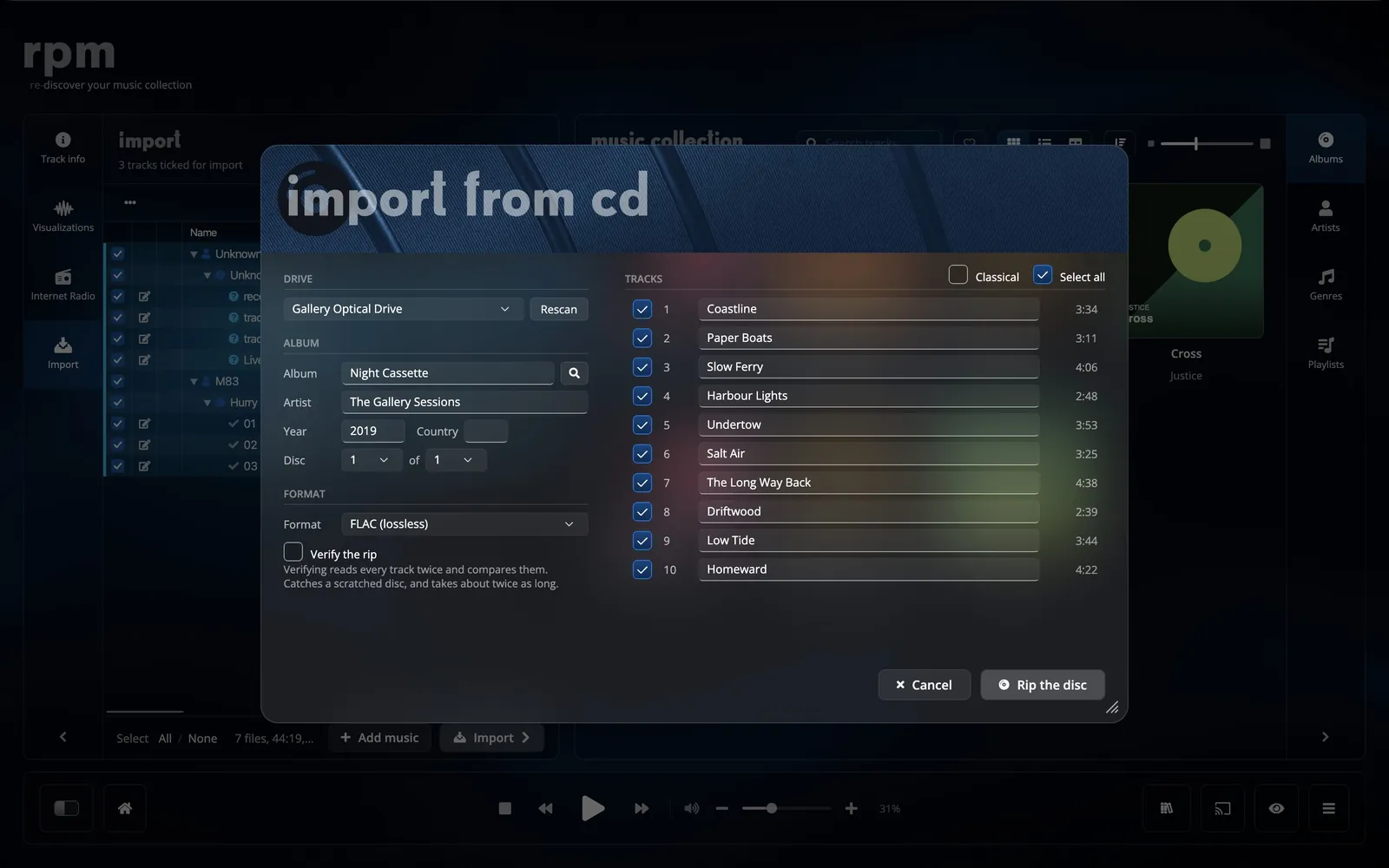
- rpm reads the disc and looks it up. The album, artist, year, country and track titles are filled in.
- Check the titles, untick any track you do not want, and choose a format.
- Choose Rip the disc. You can minimise the window: the rip carries on in the background, and a chip on the player shows its progress.
- When the rip is done, the album is imported into your collection with its artwork.
Identifying the disc
rpm identifies a CD by its MusicBrainz disc ID, worked out from the lengths of its tracks, and looks the release up in the rpm catalogue. You can also search the catalogue or Discogs yourself with the Look up button next to the title.
Looking a disc up needs an rpm account. Without one you can still rip the disc and type the titles in.
Formats
- FLAC (lossless)
- The default. Compression level 8: the smallest lossless file, with no loss in sound.
- ALAC (Apple Lossless)
- Lossless, for libraries that also live in Apple's apps.
- MP3 (320 kbps)
- The highest MP3 bitrate, for players that only read MP3.
Verify and scratched discs
Tick Verify the rip to read every track twice and compare the two reads. It catches a scratched disc, and takes about twice as long.
When the drive cannot read part of a track, rpm retries, and then fills the unreadable spots with silence so the rest of the track is kept. The result says how many spots were filled. A track is skipped when too much of it cannot be read, or when the drive stops responding.
While a rip runs you can:
- Skip track: skip this track and carry on with the next one.
- Stop rip here: end the rip and import the tracks that already finished.
- Cancel: discard everything this rip has made.
Box sets and classical
When the release is a set of several discs, rpm matches the disc in the drive by its tracks and numbers it. When an album with the same name is already in your collection, rpm suggests the disc number that follows. Ripping a disc you already have replaces it, and rpm says so first.
Tick Classical to group the tracks into works and movements as you rip.
Pending rips
A disc that was ripped but never taken into the collection waits under Pending rips in Add music. Import it without ripping the disc again, or delete the ripped files. The disc itself is never touched.
Concert DVDs
rpm rips the audio of a music DVD, one track per chapter. Pick the title that holds the concert; rpm lists each title with its chapters.
A copy-protected DVD needs libdvdcss, which rpm does not ship. On a Mac, install it with brew install libdvdcss. On Windows, download the 64-bit libdvdcss-2.dll and point rpm at it. rpm reads the disc again once it is installed.
Specifications
- Sources
- Audio CD, music DVD (audio only)
- Formats
- FLAC level 8, ALAC, MP3 320 kbps
- Disc identification
- MusicBrainz disc ID, the rpm catalogue, Discogs
- Verify
- Two reads per track, compared. Optional.
- Errors
- Retries; unreadable spots filled with silence and counted; skip, stop and keep, or cancel
- Background
- Rips while you listen; progress on the player
- DVD
- One track per chapter; copy-protected discs need libdvdcss
- Systems
- macOS and Windows, with a CD or DVD drive