 Skip to content
Collection manual
the recorder.
The Recorder records vinyl and cassettes into your library, one side at a time. Afterwards you split the recording into tracks and, if you want, remove clicks and noise. This page explains each step.
What you need
- A turntable with a phono preamp (built in, or a separate one), or a USB turntable.
- Or a cassette deck, or anything else with a line out.
- A way into your computer: a line-in port, an audio interface, or the turntable's own USB connection.
A cassette is recorded the same way as a record: it is a line-in source like any other.
Choose the input
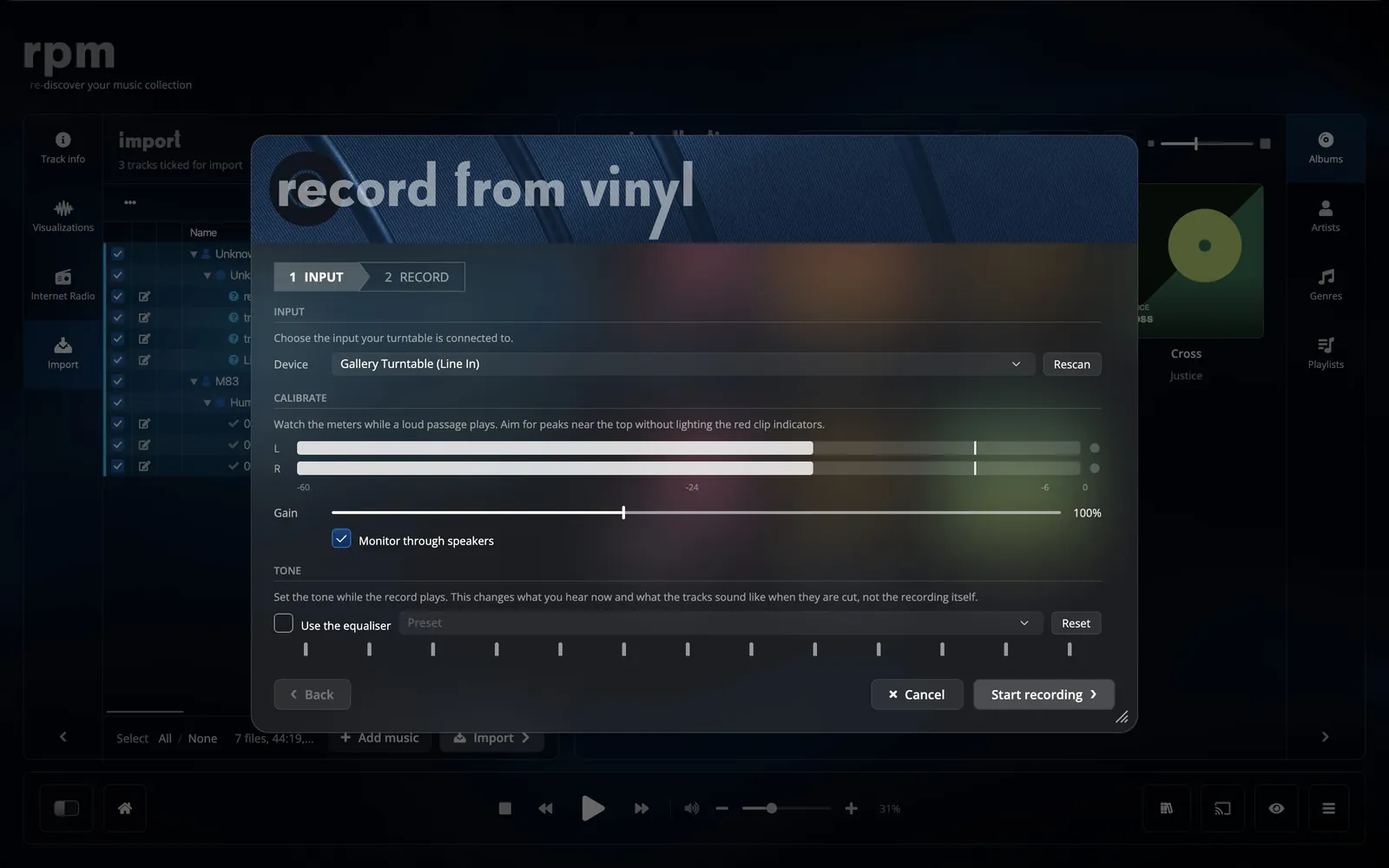
- Choose Add music, then Vinyl (record from a turntable or line-in).
- Under Input, choose the device your turntable is connected to.
- Turn on Monitor through speakers to hear the record while it records.
Set the level
Play a loud passage and watch the left and right meters. Raise or lower Gain until the peaks come near the top without lighting the red clip indicator. A recording that clips cannot be repaired later; one that is a little quiet can.
Set the tone
Turn on Use the equaliser and pick a preset, or set the bands yourself, while the record plays. This changes what you hear now and what the tracks sound like when they are cut; the recording itself is kept as it was. Reset puts every band back to flat.
Record the sides
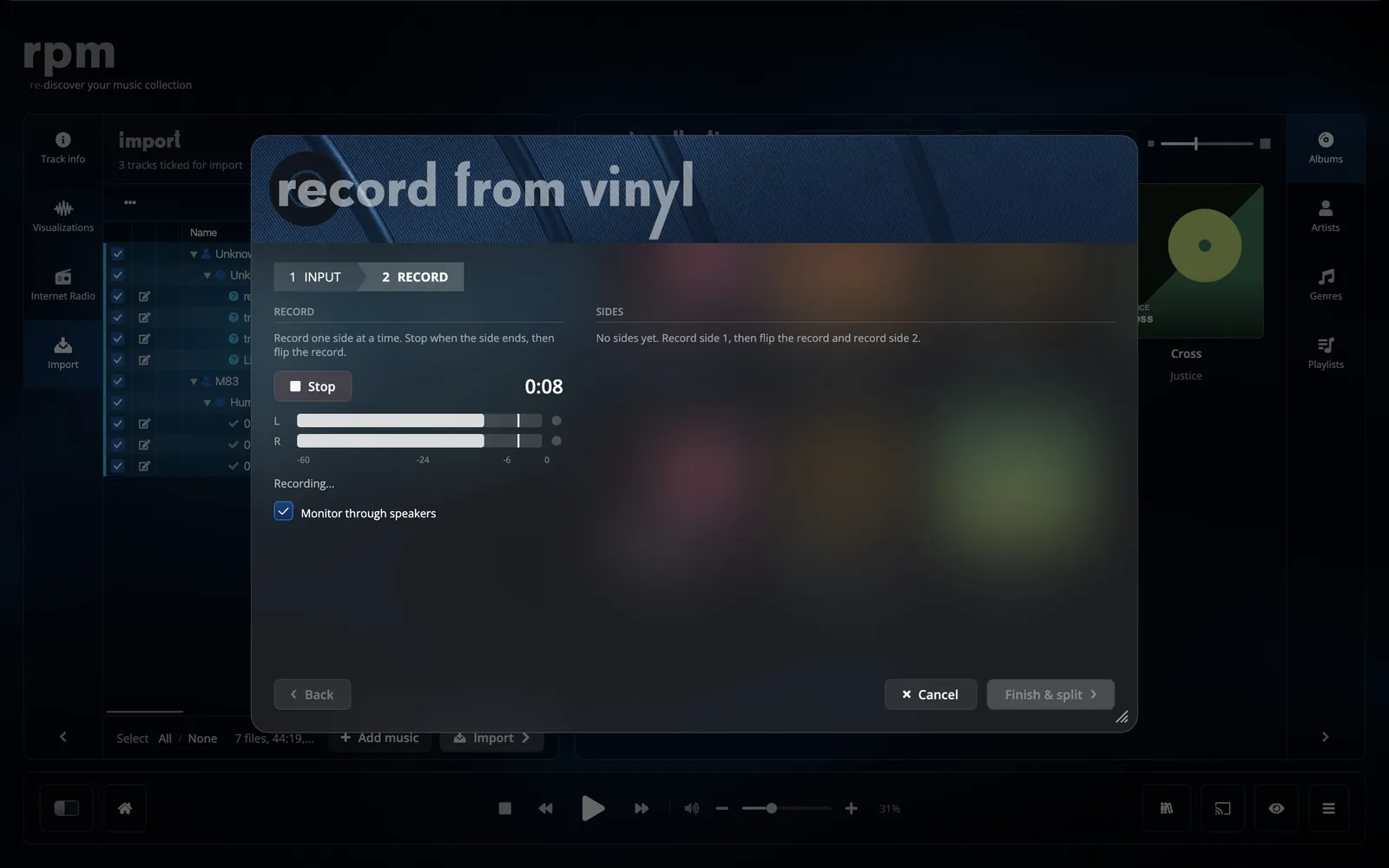
- Put the needle down and choose Start recording.
- Choose Stop when the side ends. The side is saved as FLAC.
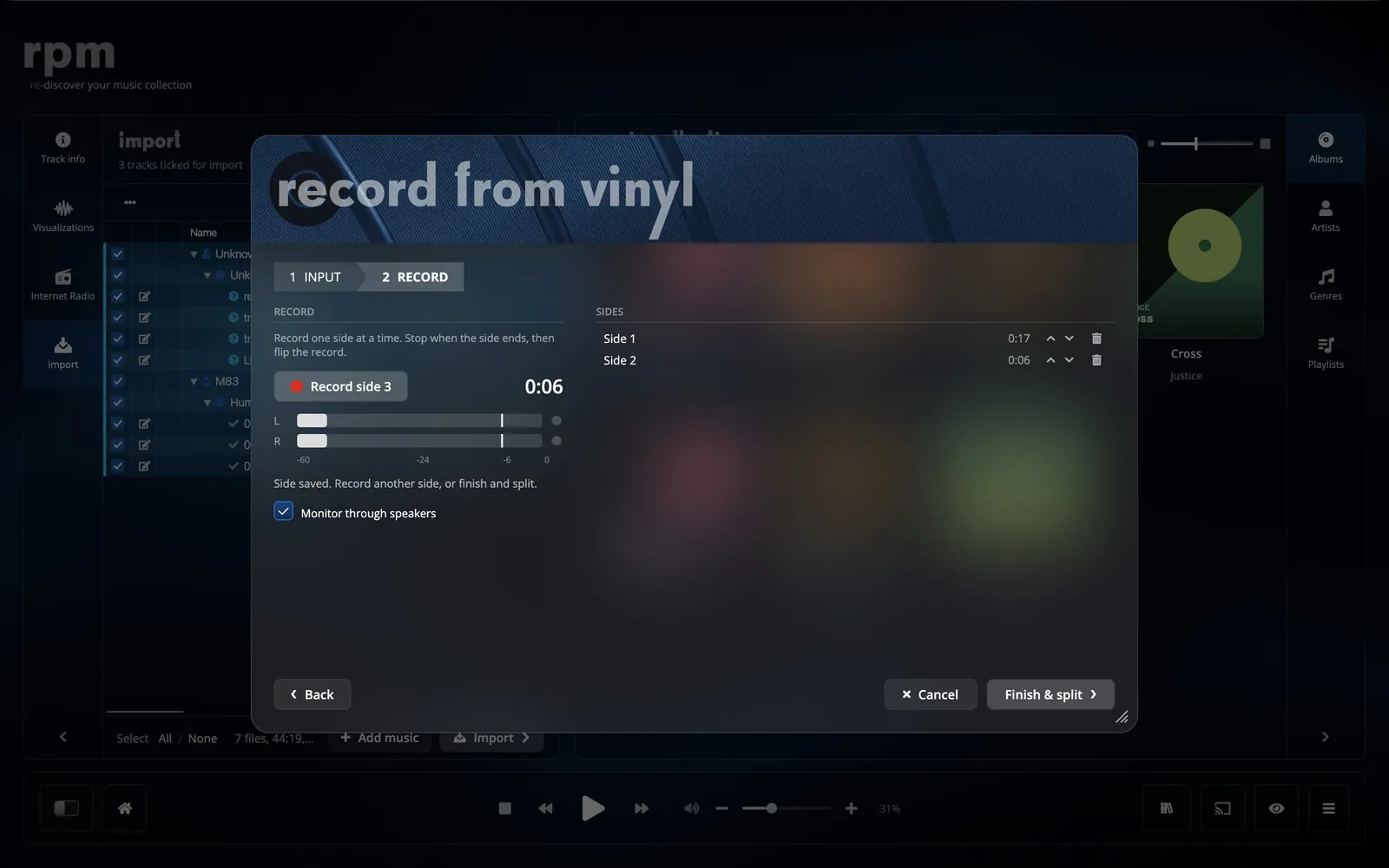
- Flip the record and choose Record side 2. Carry on for every side.
- Move a side earlier or later if you recorded them out of order, or discard one and record it again.
- Choose Finish & split.
Sides you have recorded but not yet split wait under Pending rips in Add music, so you can stop and come back later.
Split into tracks
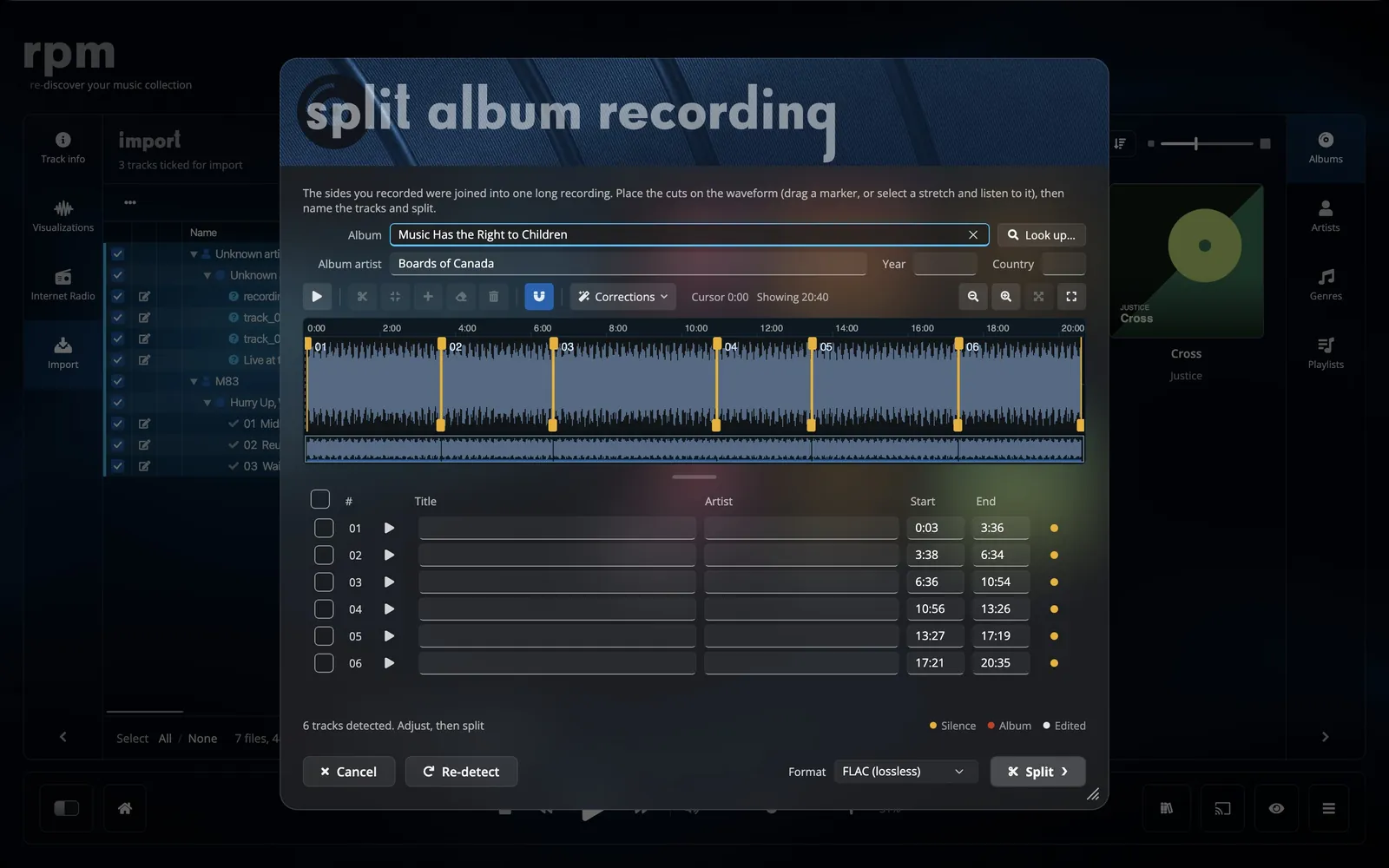
Your sides are joined into one recording and shown as a waveform. rpm places a cut at each place it thinks a track starts, and colours each cut by where it came from:
- Silence
- A gap found in the audio.
- Album
- Placed from the release's own track lengths, for records with no audible gap.
- Cue
- An exact position from a cue sheet.
- Edited
- A cut you placed or moved yourself.
Drag a marker to move a cut. While you drag, the cut snaps to the nearest quiet point; hold Shift to place it exactly. Play any track to check it, and use Re-detect to start the cuts over. Choose Split when they are right. The original recording is kept.
Clean up the sound
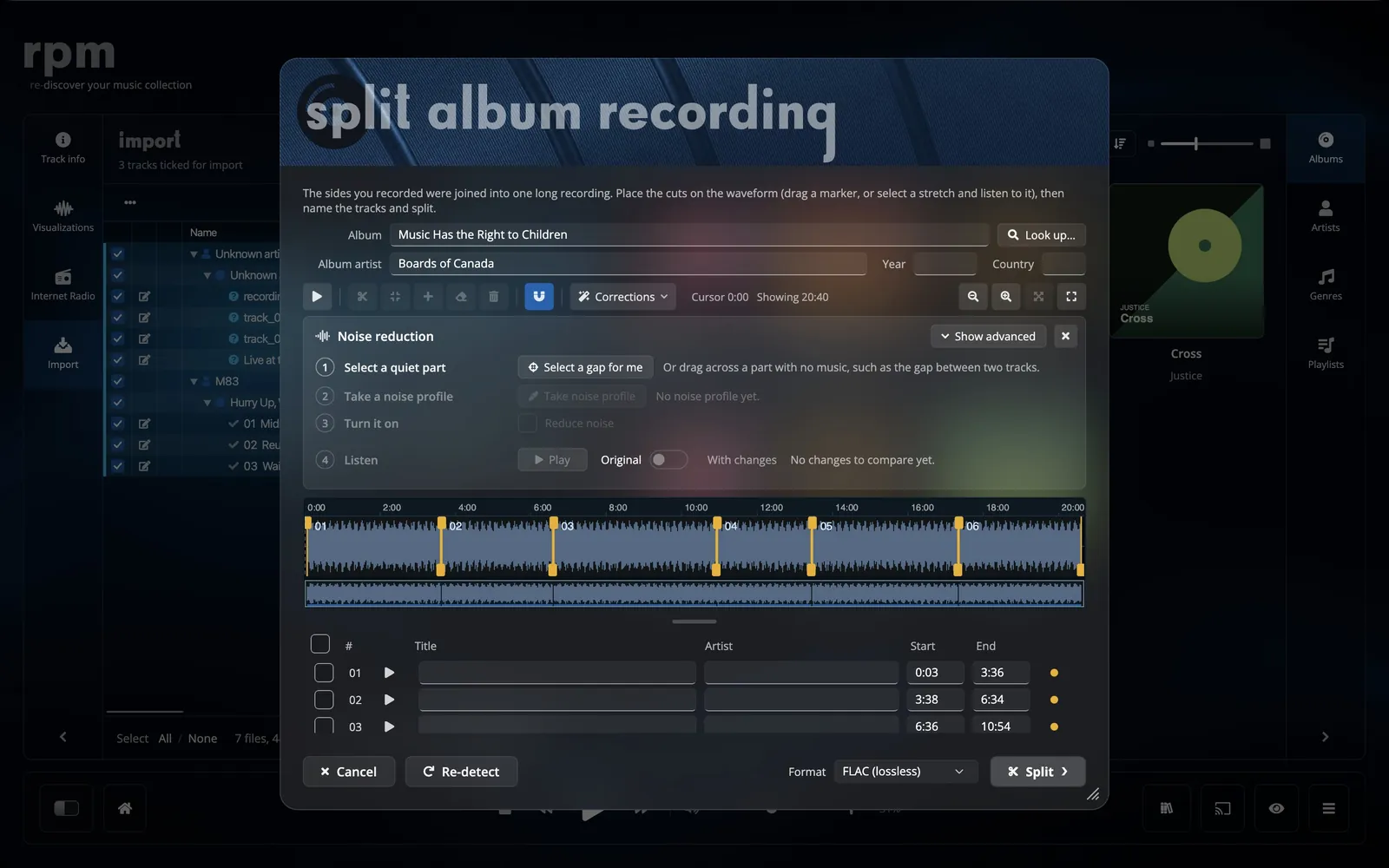
Open Corrections in the split editor for noise reduction, click removal, and bass and treble. Each one is applied to the tracks when they are cut.
Click removal
Turn on Remove clicks. It finds and repairs clicks and pops with no setup. Strength runs from gentle to strong: stronger finds more clicks, but can soften sharp sounds in the music. The preview says how many clicks it repaired.
Noise reduction
- Select a quiet part. Choose Select a gap for me, or drag across a part with no music, such as the run-in groove or the gap between two tracks. Half a second or more.
- Take a noise profile. rpm measures the hiss and rumble of your own record.
- Turn it on. Choose Reduce noise.
Under Show advanced: Reduction sets how much quieter the noise gets. Sensitivity removes more noise when higher, but can dull quiet music. Smoothing reduces a watery, warbling sound.
Listen and compare
Choose Play to hear the selection, or 15 seconds from the cursor. Flip the switch between Original and With changes while it plays to compare. Bass and treble are applied after the noise and clicks are removed.
Name the tracks
Choose Look up to find the record in the rpm catalogue or on Discogs; the track titles, the artwork and the cuts can all come from the release. Or tick tracks and choose Recognise selected to name them from the sound. You can always type the names in.
Keyboard
- Space
- Play the selection, or the track from the cursor
- S
- Split the track at the cursor
- J
- Join this track to the next one
- N
- Make the selection a track of its own
- Delete
- Remove the track markers inside the selection
- Z
- Zoom to the selection, or to this track
- + and -
- Zoom in and out (or the wheel over the waveform)
- 0
- Show the whole recording
- Shift while dragging
- Place a cut exactly instead of snapping it to a quiet point
Specifications
- Recording format
- FLAC, one file per side
- Sources
- Any input your computer sees: line-in, audio interface, USB turntable
- Metering
- Live left and right peak meters with a clip indicator
- Monitoring
- Through your speakers; off by default for microphones
- Tone
- An equaliser with presets while recording; bass and treble in the split editor
- Track cuts
- From silence, a cue sheet, or the release's track lengths; snap to quiet points
- Corrections
- Click removal (gentle to strong), noise reduction from a profile (reduction, sensitivity, smoothing), bass and treble, A/B listening
- Naming
- rpm catalogue, Discogs, recognition from the sound
- Original
- The recording is kept after splitting